Report Management
Report Management
Users can manage the report on the "Report" interface, mainly including 4 components: Plant Report, Energy Report, Inverter Report and Customer Report.
Plant Report
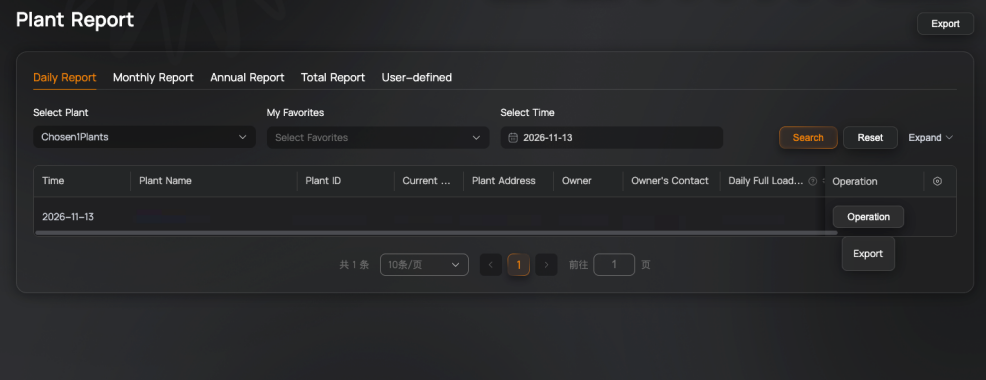
[Select Time] Users can select to export the power station report for the specified time period. The choice of the time period corresponds to the type of report selected, when the report type selects the cumulative report, do not choose the time.
[Select Plant] Users can select the name of the power station that needs to export the report, click "Select power station", and check the name of the required power station Click "OK" to complete; Or filter by the area or search by the name of the station.
[Current Status] Users can filter the power station according to whether the station is currently online、offline or alarming.
[Select Report Type] Users can select the types of exported power station report: Daily report, Monthly report, Annual report, and Cumulative report.
[Export Report] After the above selection operation is completed, click "Export" in the upper right corner to pop up the download option. Users can customize the name and download path, and click "Download" to complete the operation. Users can also click the "Export" operation on the far right of the list of power stations to download the data of a single power station.
Energy Report
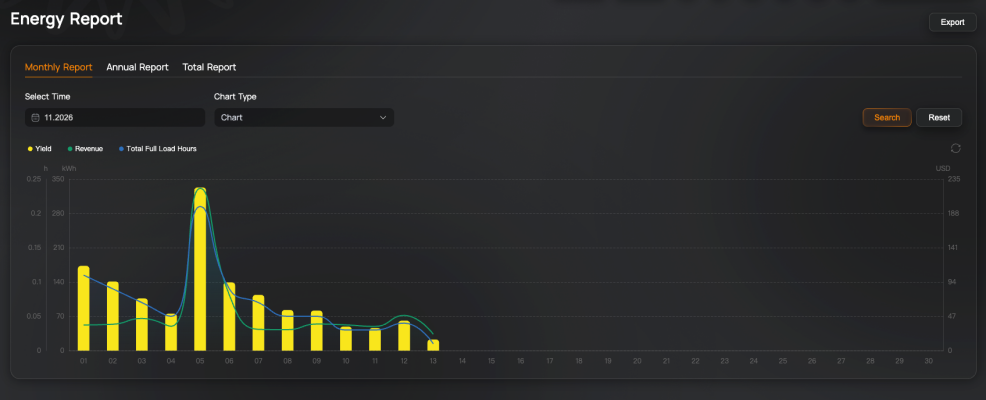
[Select Report Type] Users can select the types of exported power station report: Daily report, Monthly report, Annual report, and Cumulative report.
[Select Time] The user can select to export the power station report for the specified time period.
[Chart Type] Users can view the power generation, revenue and total full generation hours of the plant in the form of graphs or tables.
[Export report] After the above operation are completed, click the "Export" in the upper right corner, and then enter the verification code in the pop-up verification code window to export the report. Click "Download" to generate the Excel sheet.
Inverter report
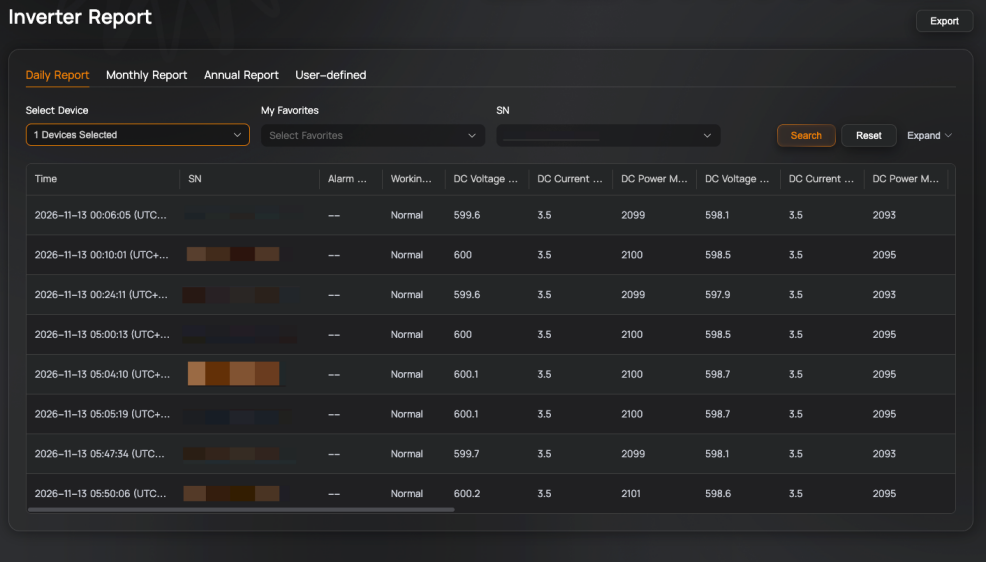
[Select Device] Select device Users can select the device SN number that needs to export the report, click Select Device, and check the name of the required power station Click "OK" to complete; or search by device SN
[Select Report Type] Users can select the types of exported power station report: Daily report, Monthly report, Annual report, and Cumulative report.
[Select Time] The user can select to export the power station report for the specified time period.
[Export Report] After the above operation are completed, click the "Export" in the upper right corner, and then enter the verification code in the pop-up verification code window to export the report. Click "Download" to generate the Excel sheet.
Customer Report
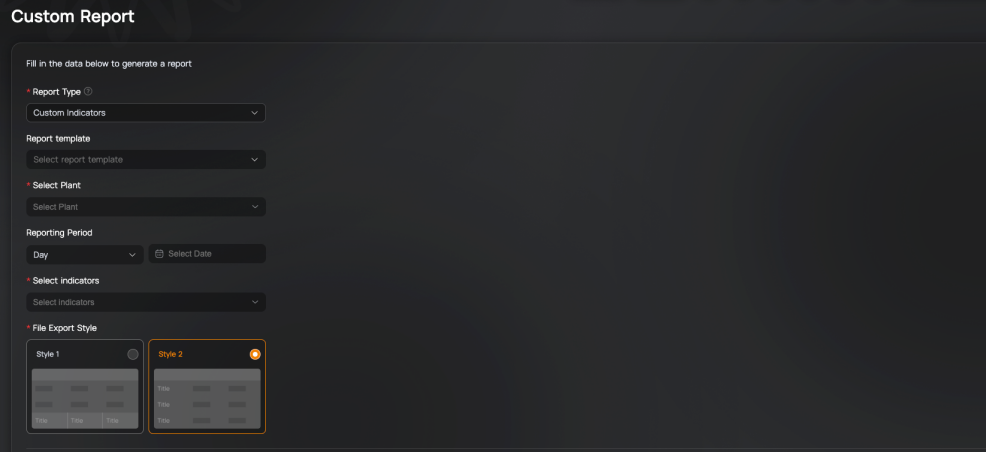
[Report Type] Report type is fixed as a power station report, not optional.
[Report Template] Users can save the customized template, which can be directly applied in the next export, without the need to check the correlation number occupy.
[Select Plant] Users can select the name of the power station that needs to export the report, click "Select power station", and check the name of the required power station Click "OK" to complete; Also filter by station area or search by station name.
[Reporting Period] Users can select a day, month, month or total report.
[Select Indicators] The user can check the metrics that need to be exported.
[Generate Report] After the above selection operation is completed, click "Generate report" and enter the verification code in the pop-up verification code window to guide it Publish the report, click "download" to generate the Excel table.
[Save Template] You can save the currently filled data as a template and enter a name.
Report Subscription
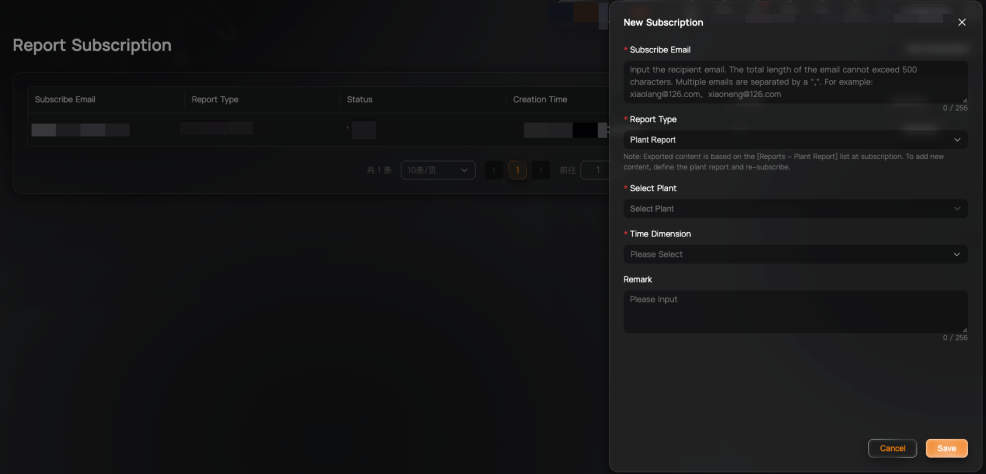
In report subscriptions, users can have the report content sent to a specified email address.