Plant Management
Plant Management
Users can operate and manage plants in the "Overview" - "Plant Overview" interface.
Plant Overview
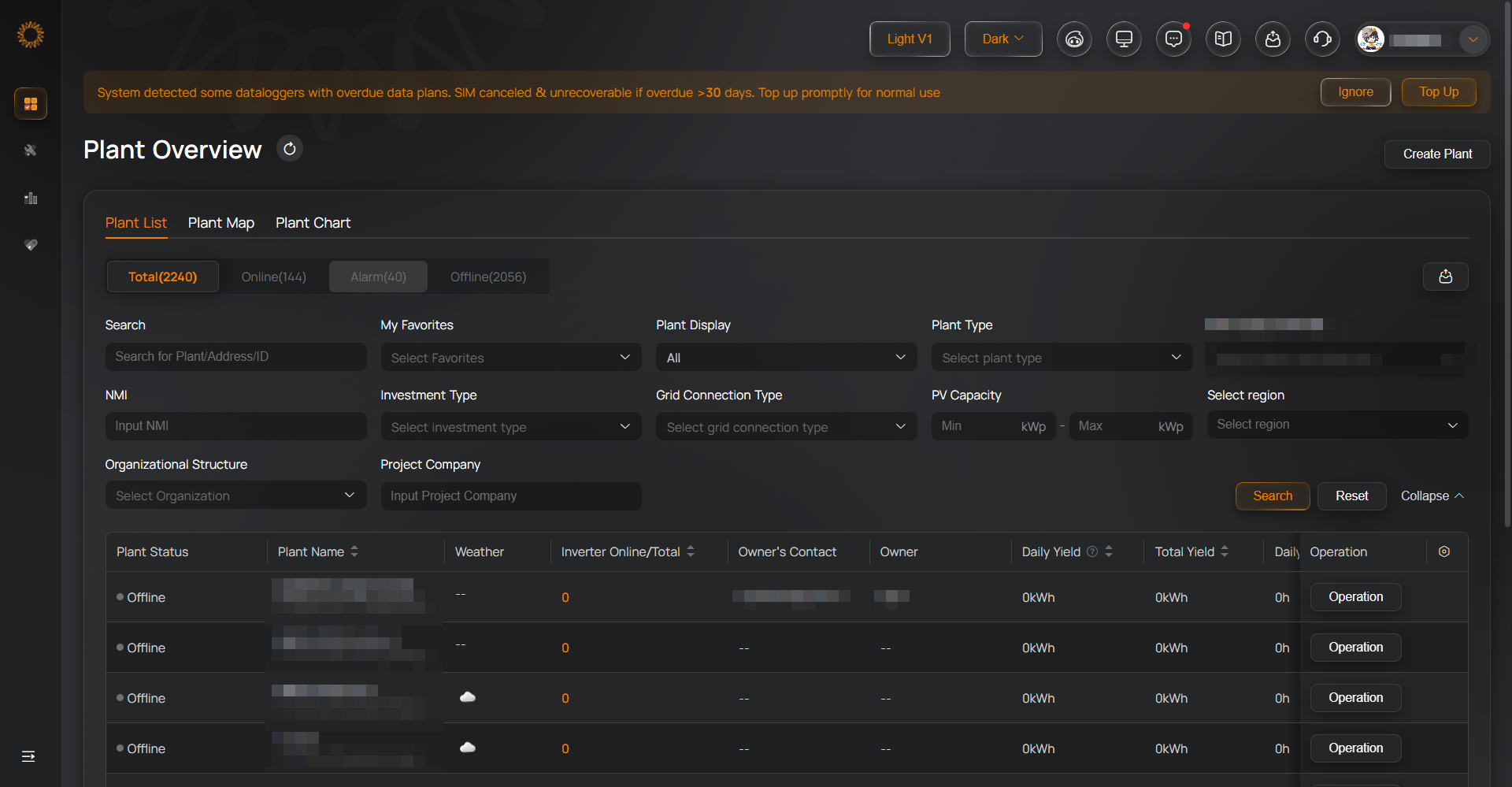
[Create Plant] Users can add a plant to be created in this interface, please refer to section Add plant for specific operation.
[Plant Search] Users can search for a specified plant according to their own needs, enter the name/address/ID of the plant, and click "Search" to complete the search.
[Filter] Users can use the filtering function to search for plants by classification, including:Favorites,Plant Display,Plant Type,NMI,Grid Connection Type,Capacity,Selecte Region, and Organization.
Plant Information
Click on a specific plant to view specific information about the plant and manage it individually.
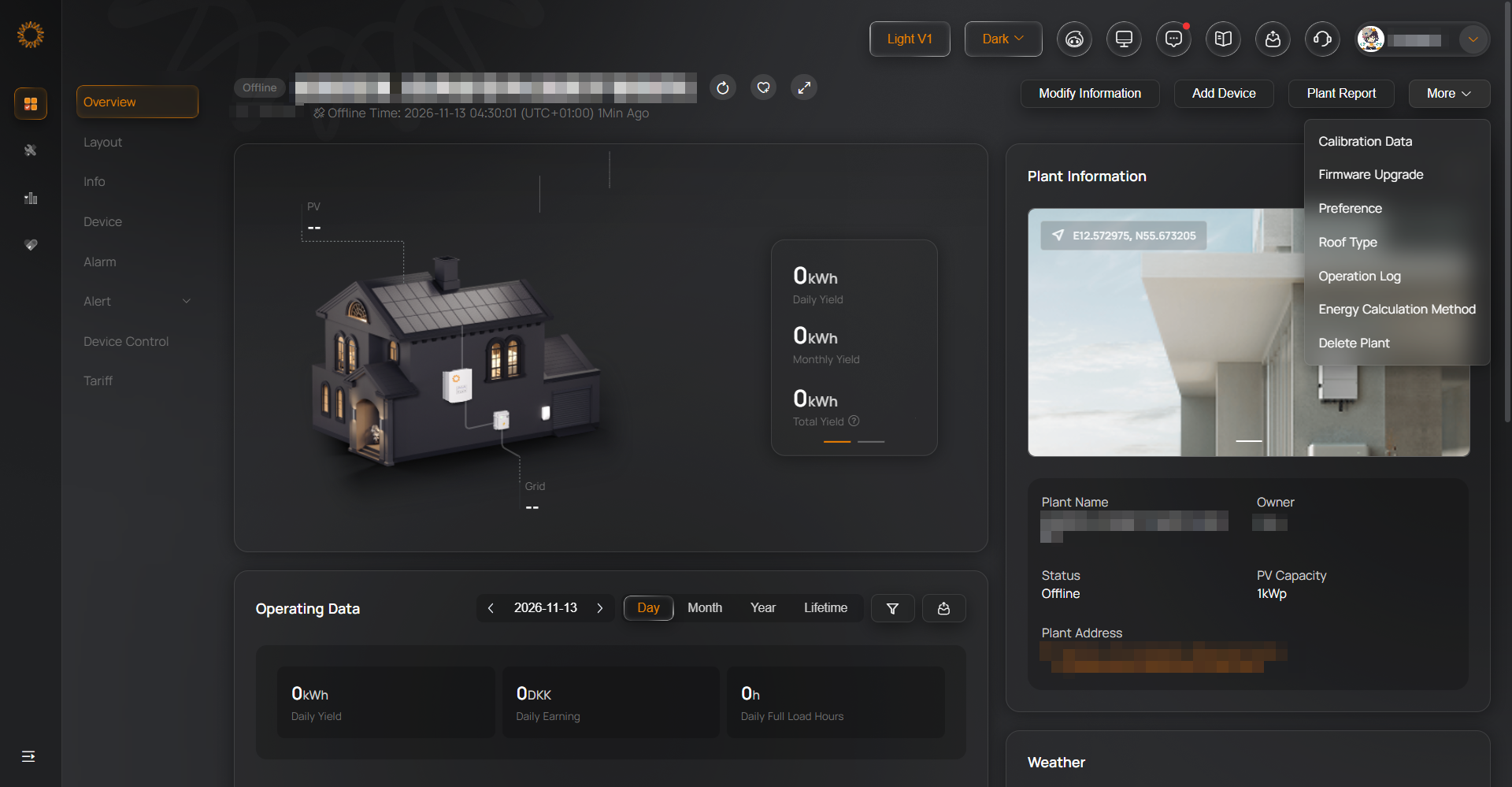
[Overview] Users can view the basic information of the plant, please refer to the following table for specific information description:
| Basic Information | Information Description |
|---|---|
| Daily Yield | You can view the plant power for each 5 minutes and energy yield of the current day |
| Monthly Yield | You can view the amount of energy yield and of the plant for the day and current month. |
| Total Yield | You can view the amount of energy yield and the earnings of the plant for the current year and cumulatively. |
| Weather | You can view the day and night weather, temperature, sunrise and sunset times, humidity, wind direction, and wind speed at the location of this plant. |
| Environmental Benefits | You can view the equivalent number of green plants and CO2 emissions reduced by using the plant. |
| Alarm Information | You can view the historical alarm information of the plant, which can also be seen by clicking on the [Alarm] interface of the plant. |
| Location | You can view the exact location of the plant and zoom in and out by rolling your mouse over the map. |
[Tariff Setting] Users can set the Purchase Tariff and Feed-in Tariff.
[Modify plant information] Users can update and modify the information set when adding a plant in two methods:
Method 1: Click "Modify Information" in the upper right corner of the "Overview" interface of the plant to operate.
Method 2: Click "Modify Information" in the upper right corner of the "Info" interface of the plant to operate.
[Plant Report] It is possible to export the power station report for a specific time period.
[Calibrate Energy] Users can manually calibrate the power generation of the plant, details can be seen in the tips.
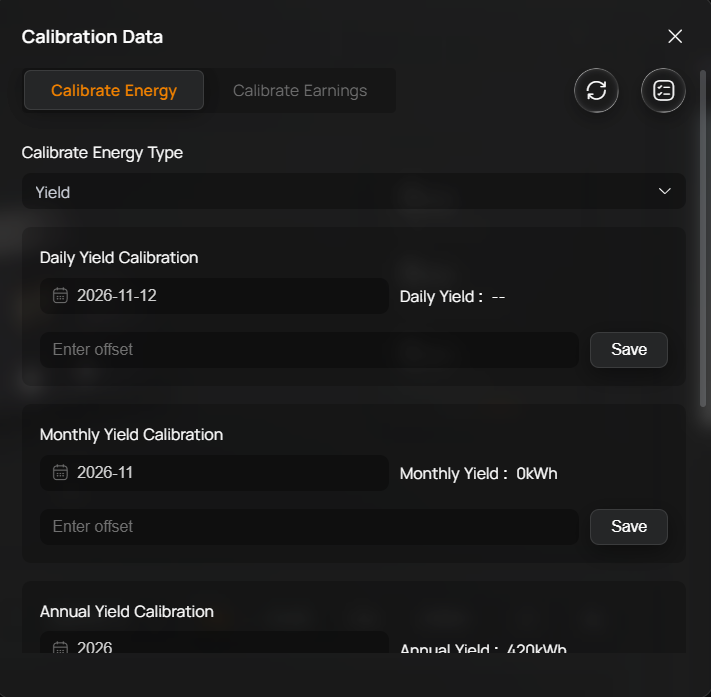
[Calibrate Earning] Users can manually calibrate the plant earning, see detailed prompts.
[Preference] Users can adjust the interface layout according to their preferences.
[Roof Type] Users can set the type of roof.
[Operation Log] Users can view the operation log of the plant.
[Delete Plant] Users can delete the plant. After clicking "Delete Plant" in the upper right corner of the "Overview" interface, the system will pop up a warning message and click "Delete" to complete.
[Devices] Users can add and edit the devices used in the plant.
①Add device: You can add the equipment of this plant by adding collector, please refer to Add Datalogger for specific operation steps.
②Edit devices: Click on the "Device" interface of the plant to view the inverters, dataloggers and EPMs under the plant, and users can edit and manage the devices in this interface.
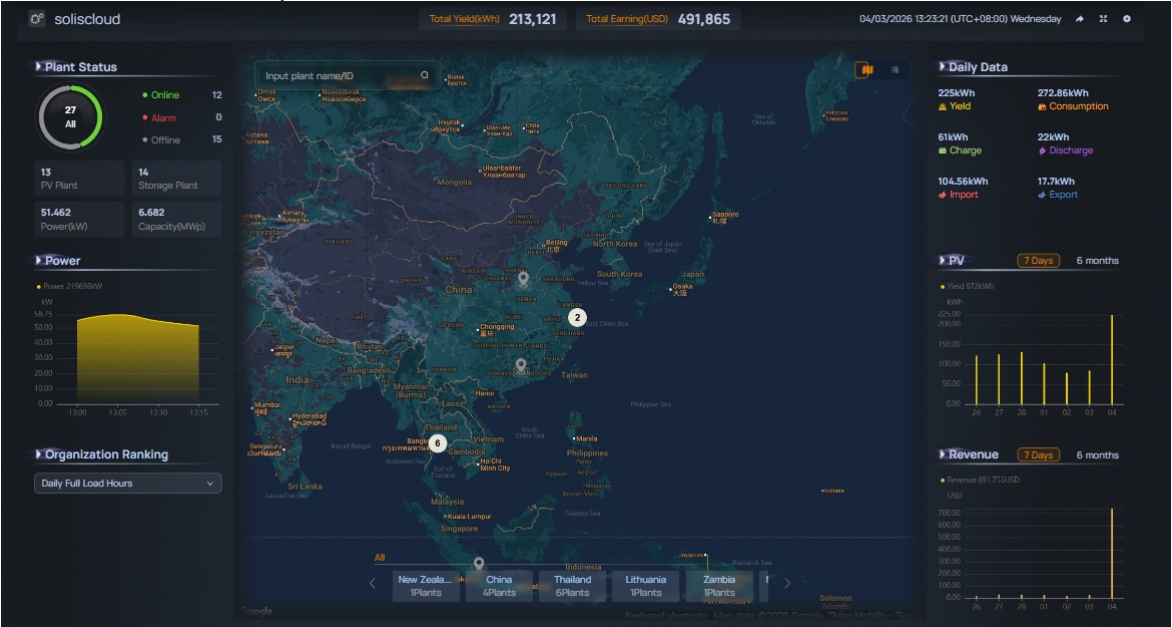
[Plant Large Screen] Users can jump to the interface as shown in the figure, displaying the data related to the plant.