Plant Management
Plant List
Tap Plants to view the plant list, where you can see the total number of plants, as well as the online, alarming, and offline counts. You can also view basic information for each plant.
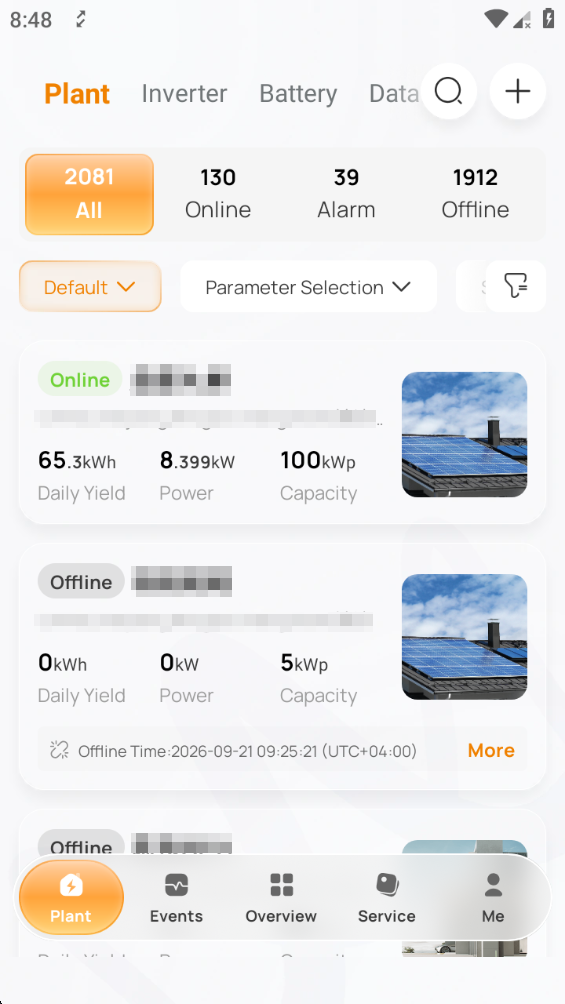
Create Plant: Users can add new plants on this screen.
Search Plants: Users can search for specific plants as needed. Enter the plant name, address, or ID, and tap Search to find it.
Filter Plants: Users can use the filter function to search for plants by category. The main filter categories include: Favorites, Organization, Plant Type, Funding Source, Grid Connection Type, Plant Capacity, and Region.
Plant Overview
Tap a plant to view its detailed information and manage it individually.
Switch View: Tap the view switch button (below the three dots in the top right corner) to switch between 2D and 3D views.
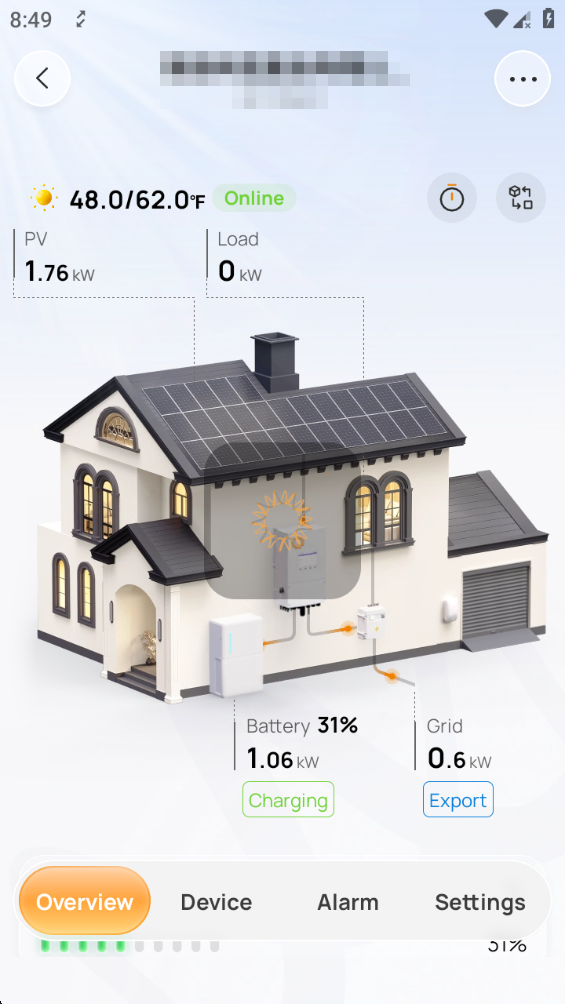
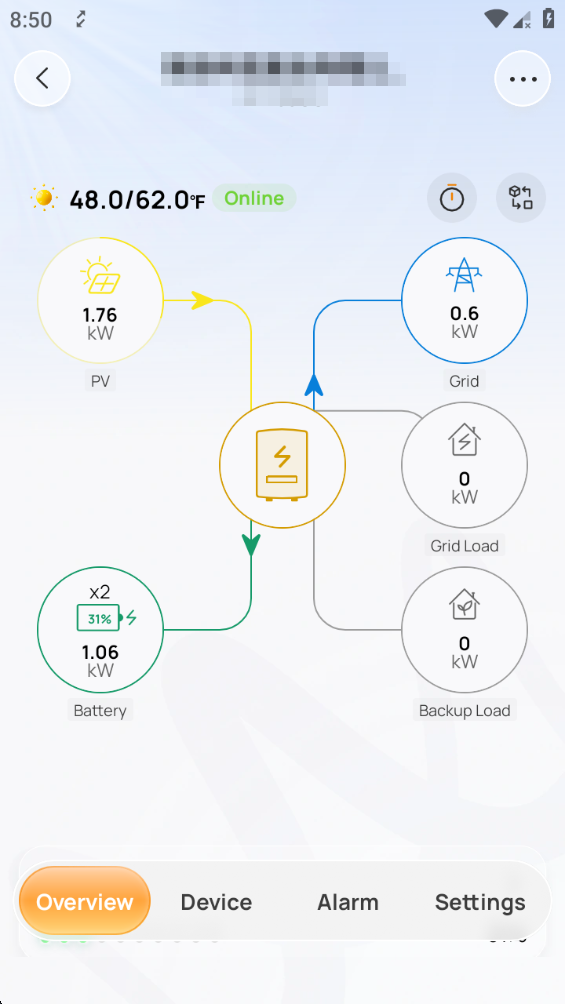
View Plant Overview: Users can view the basic information of the plant. For detailed descriptions, please refer to the table below:
| Basic Information | Description (The displayed content varies between energy storage plants and grid-tied plants. Please refer to the actual page for specifics.) |
|---|---|
| Power Generation | View daily, monthly, yearly, and cumulative power generation data. |
| Power Consumption | View daily, monthly, yearly, and cumulative power consumption data. |
| Discharge Energy | View daily, monthly, yearly, and cumulative discharge data. |
| Charge Energy | View daily, monthly, yearly, and cumulative charge data. |
| Purchased Energy | View daily, monthly, yearly, and cumulative purchased energy data. |
| Sold Energy | View daily, monthly, yearly, and cumulative sold energy data. |
| Revenue | View daily, monthly, yearly, and cumulative revenue data. |
| Peak Generation Hours | View daily, monthly, yearly, and cumulative peak generation hours. |
| Plant Weather | View day and night weather, temperature, sunrise and sunset times, humidity, wind direction, and wind speed at the plant location. |
| Eco Impact | View the equivalent number of trees planted and CO2 emission reductions achieved by the plant. |
| Alarms | View historical alarm information for the plant. This can also be accessed by tapping Alarms on the plant screen. |
Plant Settings
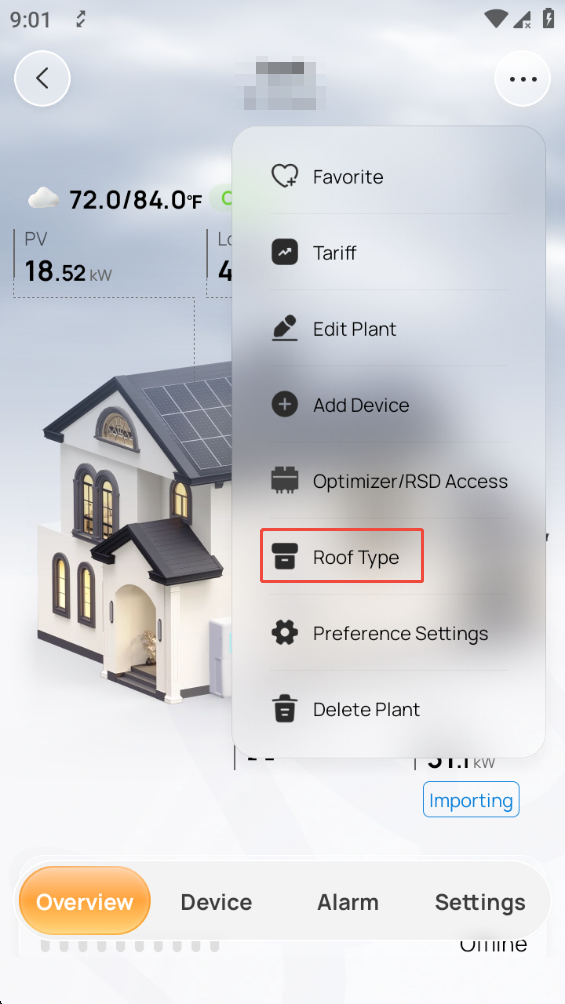
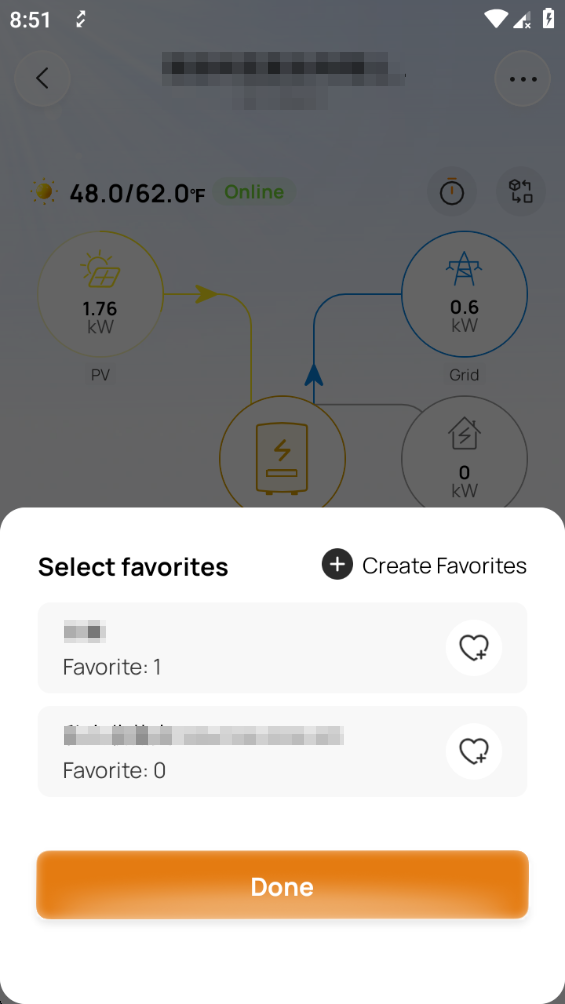
Favorite: Tap to add the plant to your favorites for quick access later via the Favorites list.
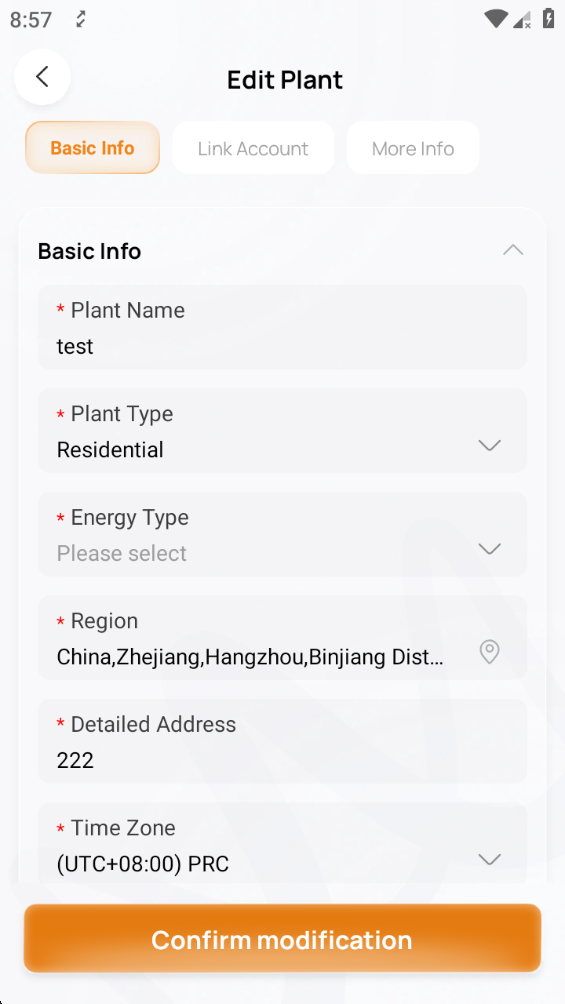
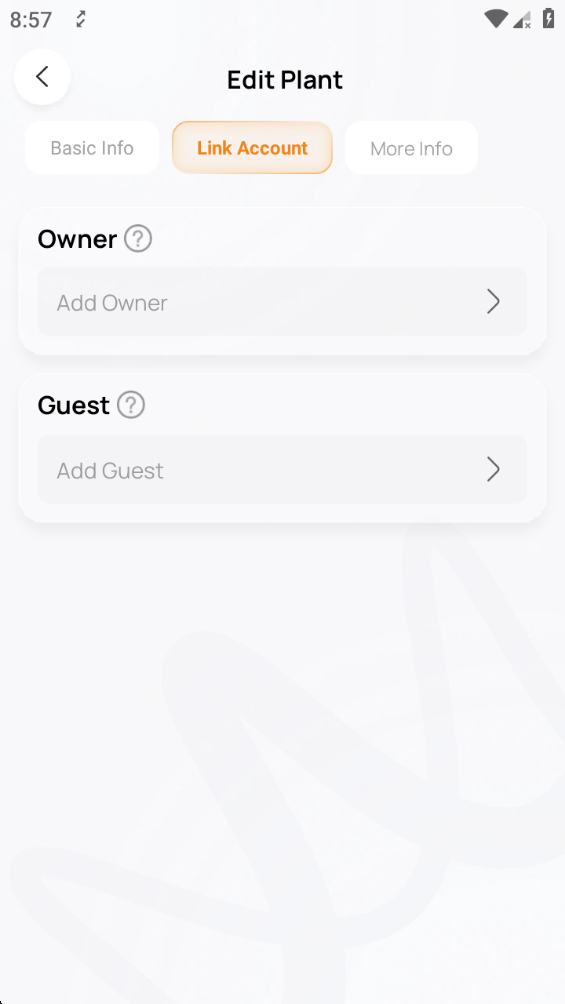
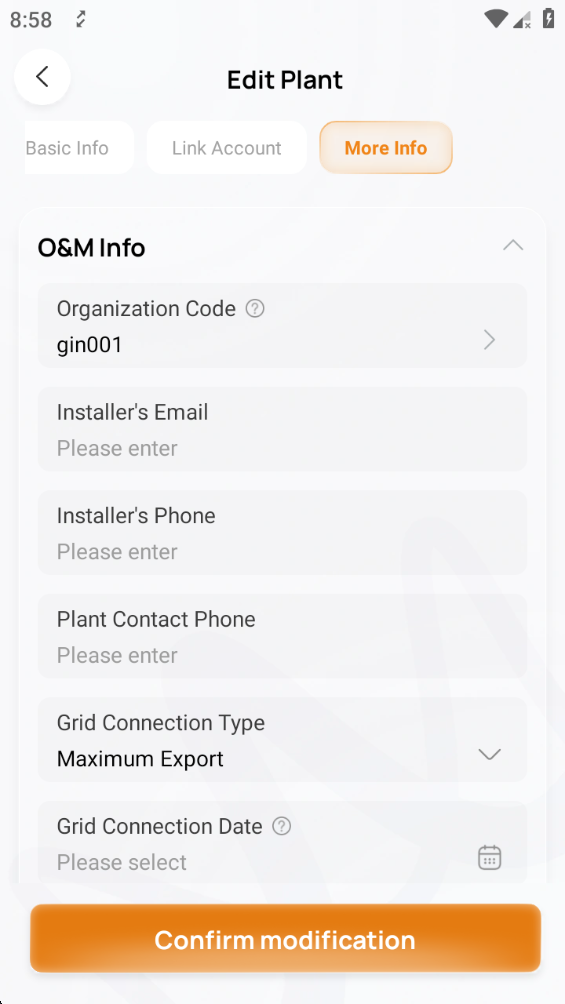
Edit Plant: You can edit the plant's basic information, management account, O&M details, and more.
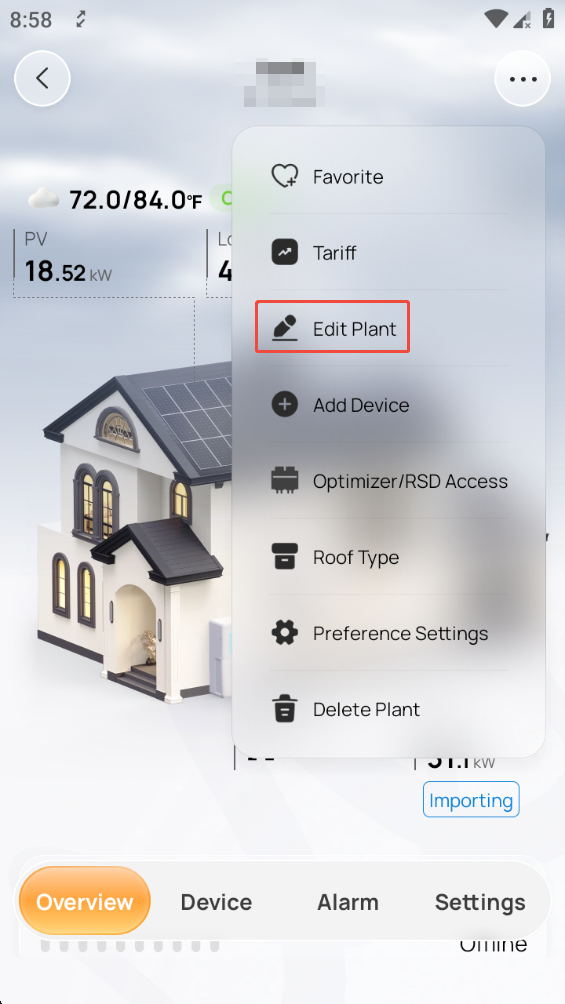
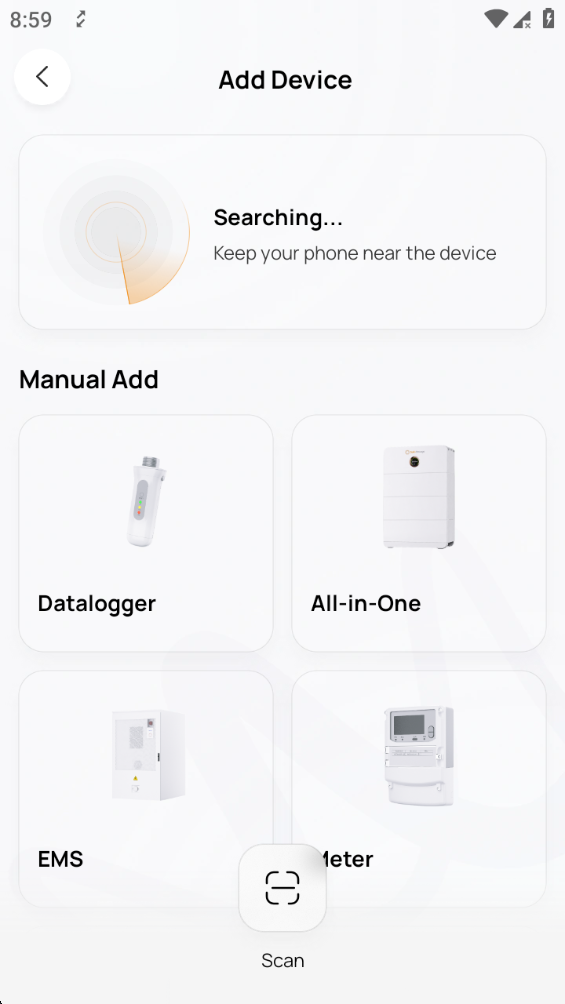
Add Device: Tap to add nearby devices.
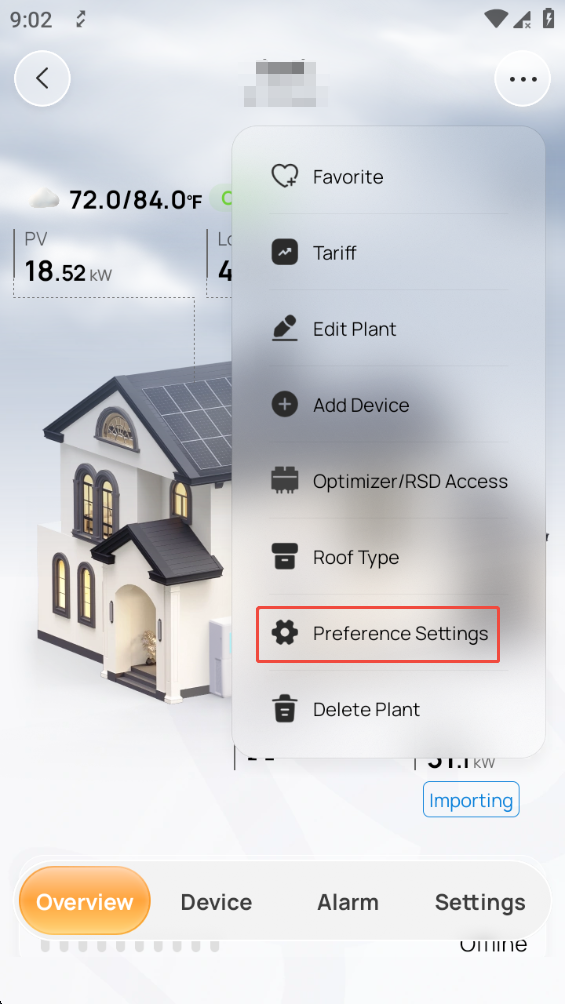
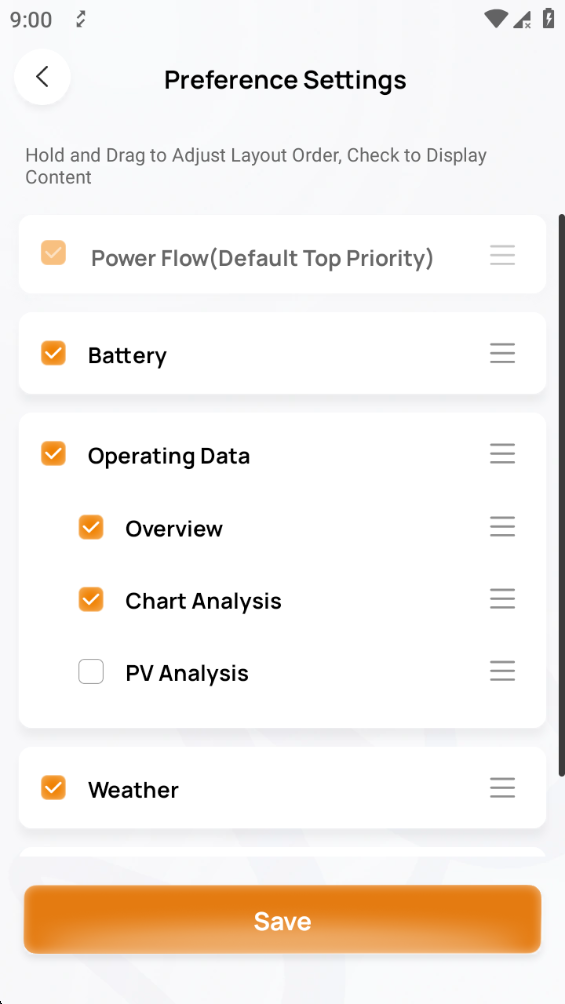
Preferences: Users can customize the interface layout and displayed content.
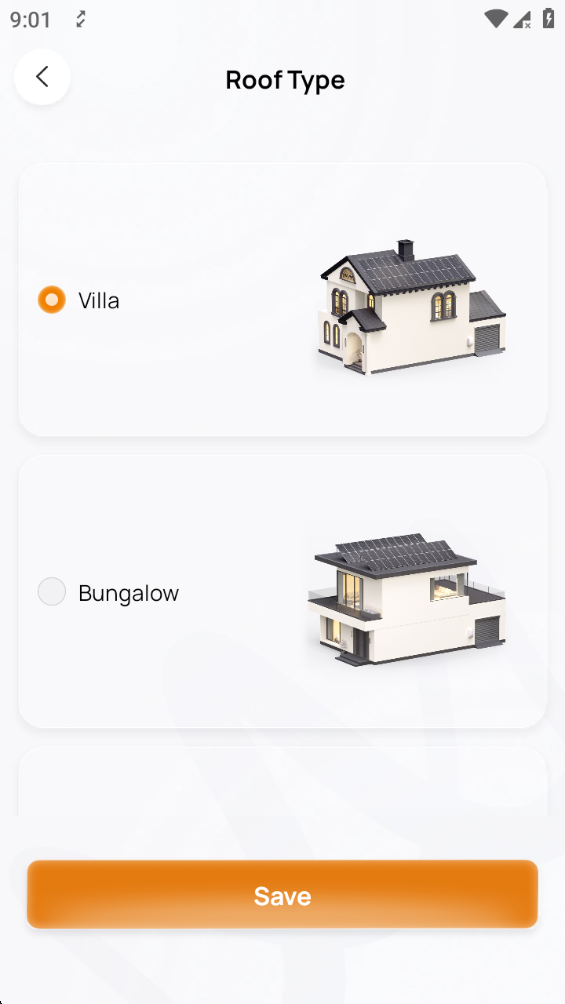
Roof Type: Users can set the roof style.