Organization Management
Users can create unlimited organizational structures tailored to their specific use cases, allowing the structure to scale both horizontally and vertically. This enables structured management, allocated plant monitoring, and the creation of account roles for daily maintenance and operations.
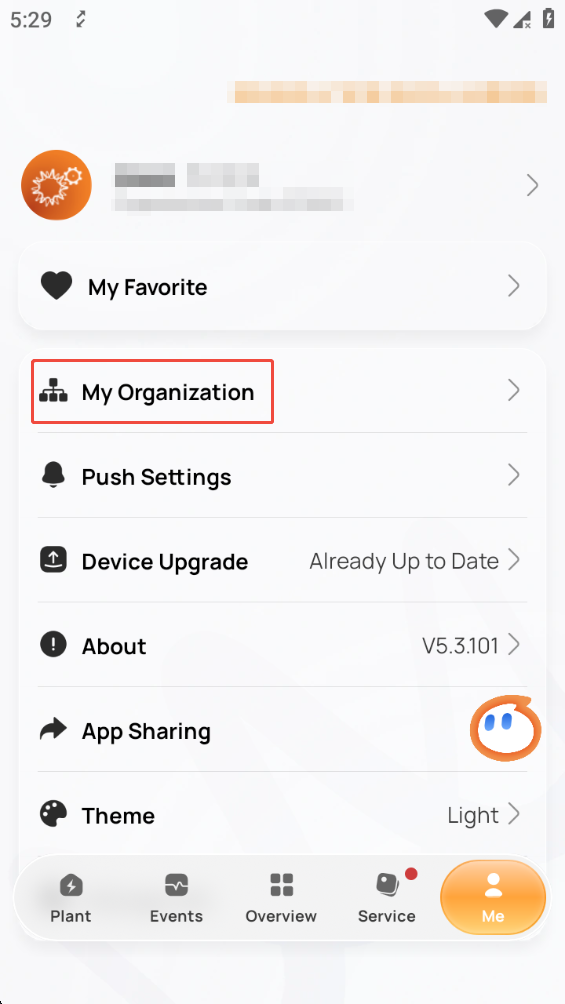
Access: Me > My Organization.
Create Sub-Organization
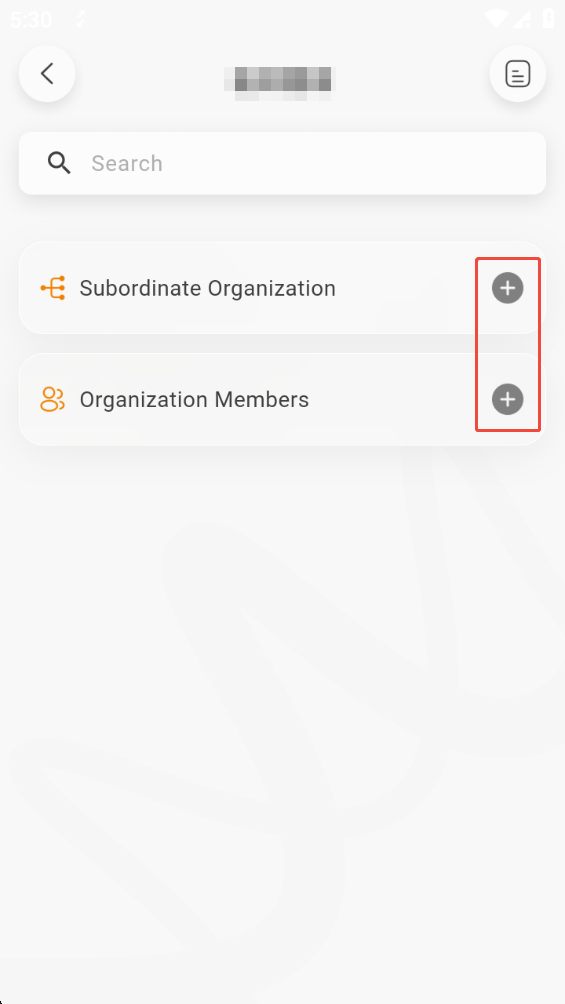
Tap Create Organization to the right of the sub-organization.
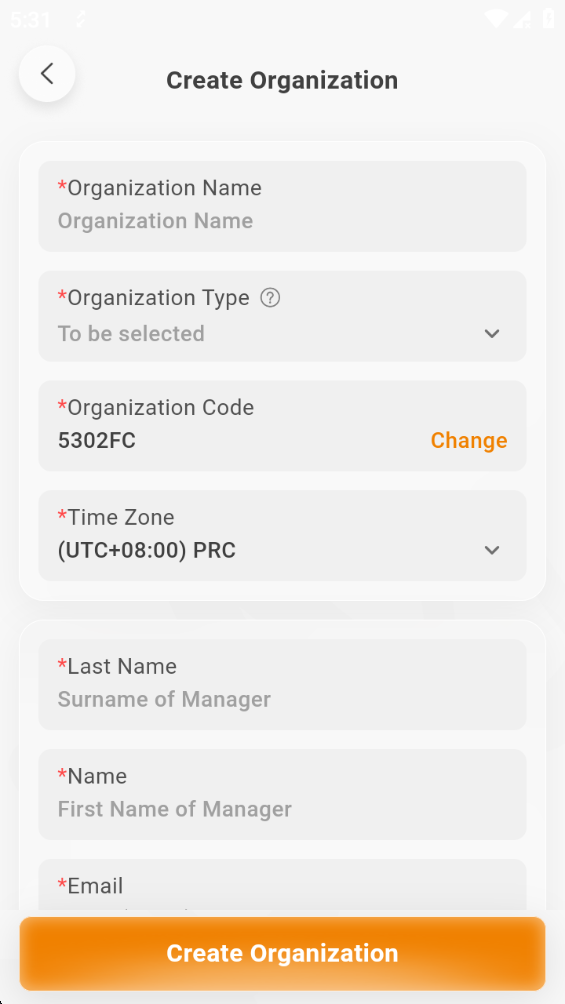
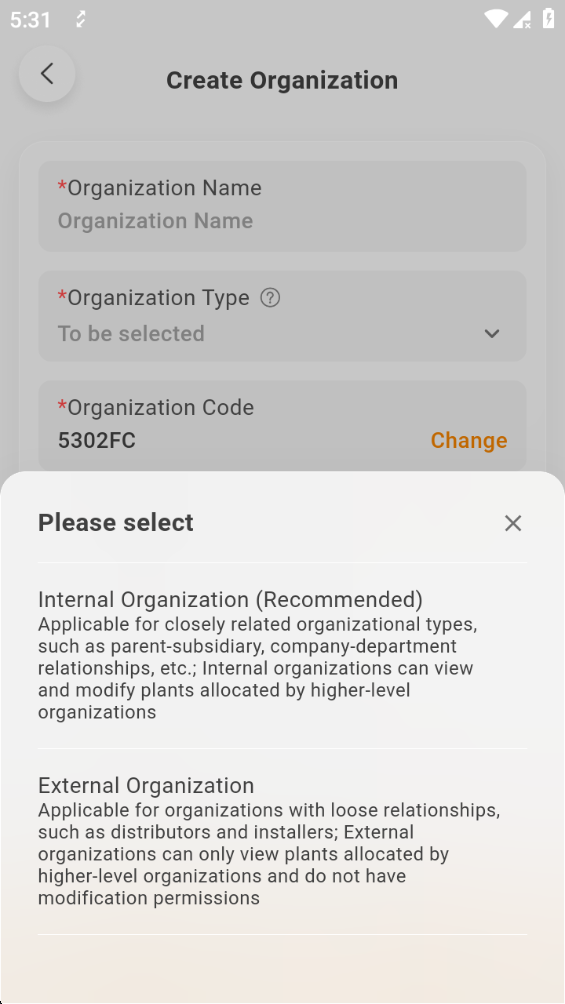
Internal Organization: Suitable for closely tied corporate relationships, such as parent company and subsidiary, or company and department. Internal organizations can view and modify plants assigned by the parent organization.
External Organization: Suitable for loosely coupled organizational relationships, such as distributors or installers. External organizations can only view plants assigned by the parent organization and have no modification permissions.
Create Member
Tap the add button next to Organization Members, then fill in the role information to complete the creation.
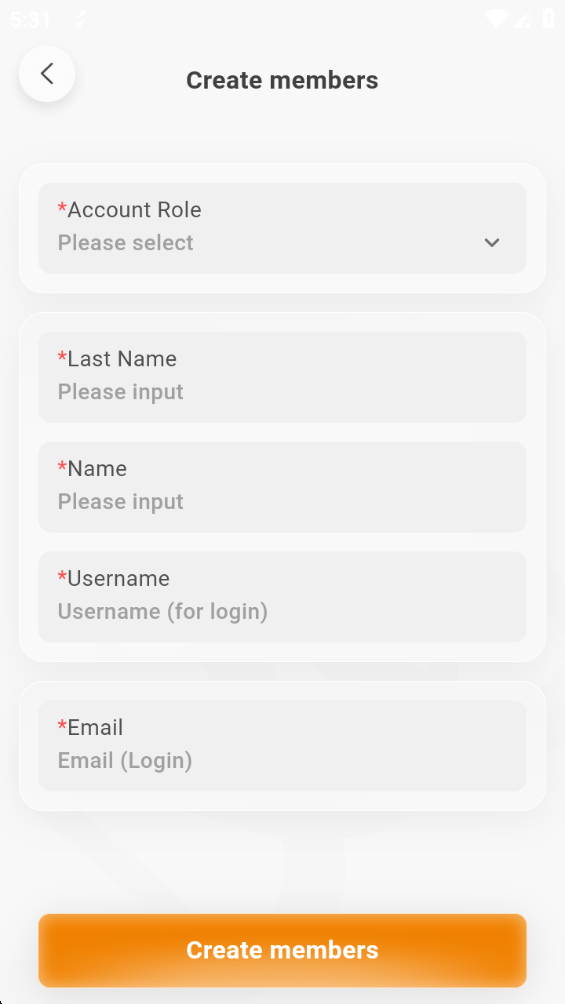
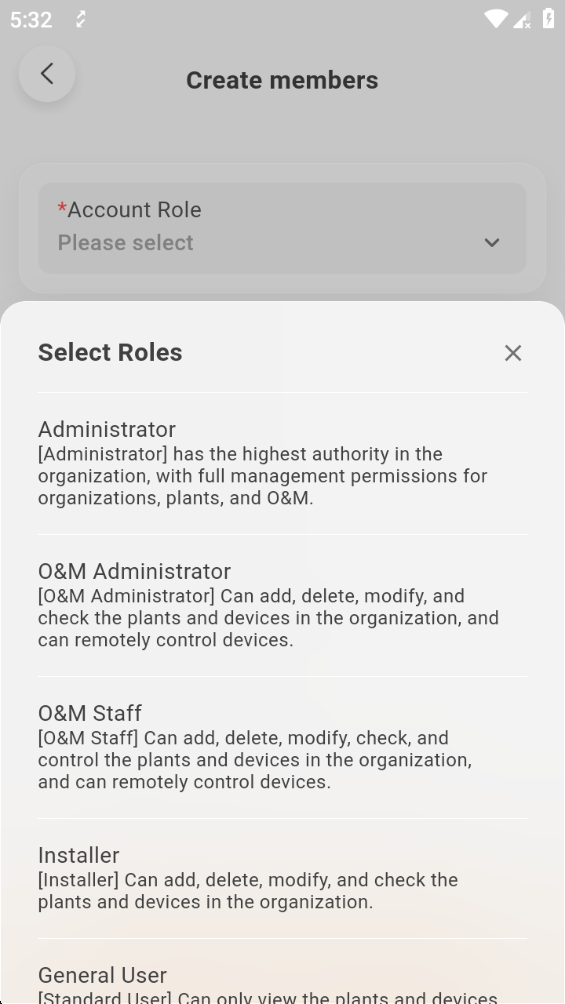
Assign member roles and permissions based on organizational management needs:
Owner: Holds the highest permissions in the organization. There can only be one Owner per organization.
Administrator: Holds the highest administrative permissions within the organization, with full management rights over the organization, plants, O&M, and all other functions.
O&M Manager: Can add, delete, edit, view, and control plants and devices within the organization, as well as dispatch and handle work orders.
O&M Staff: Can add, delete, edit, view, and control plants and devices within the organization, and handle work orders, but cannot dispatch them.
Installer: Can add, delete, edit, view, and control plants and devices within the organization, but does not have access to work order functions.
Regular User: Can add, delete, edit, and view plants and devices within the organization, but cannot remotely control devices.
Marketing Staff: Has view-only access to plants and devices within the organization.
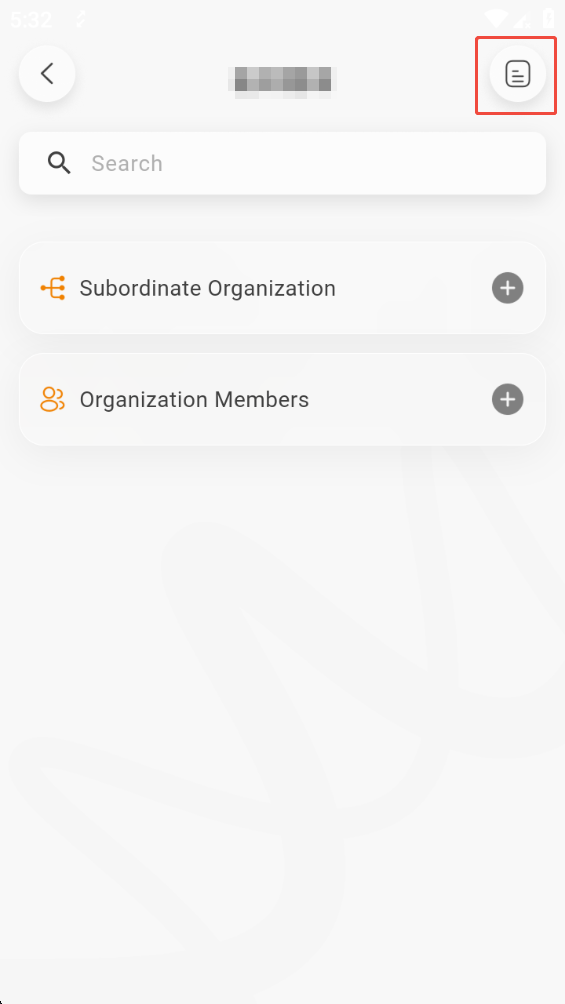
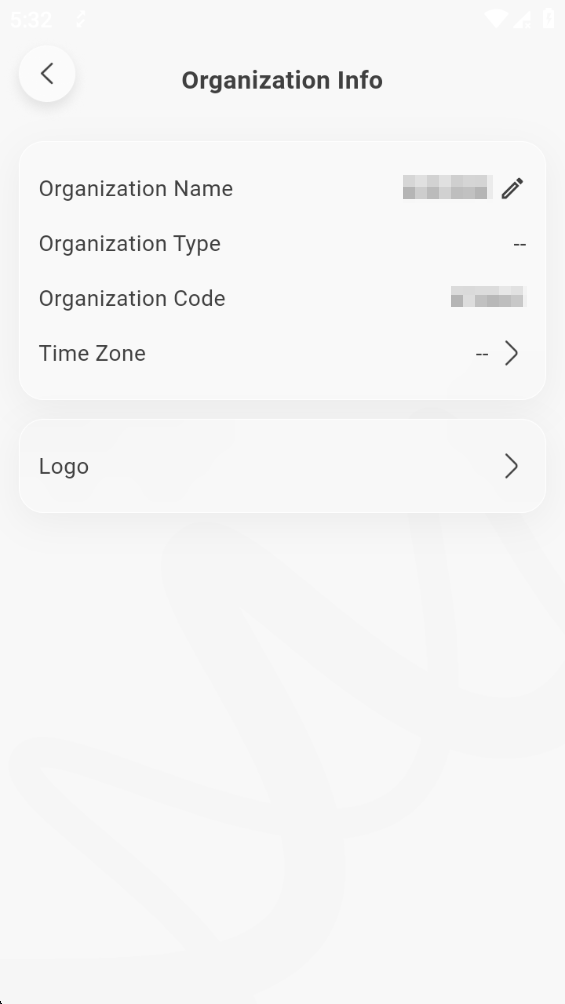
Organization Info
Tap the icon in the top right corner to access the organization profile management screen. Here, you can modify the organization's profile, including the name, type, time zone, logo, and more.